
Generate a Form
The Update Records with Forms workflow action creates the secure form link. This page documents every input.
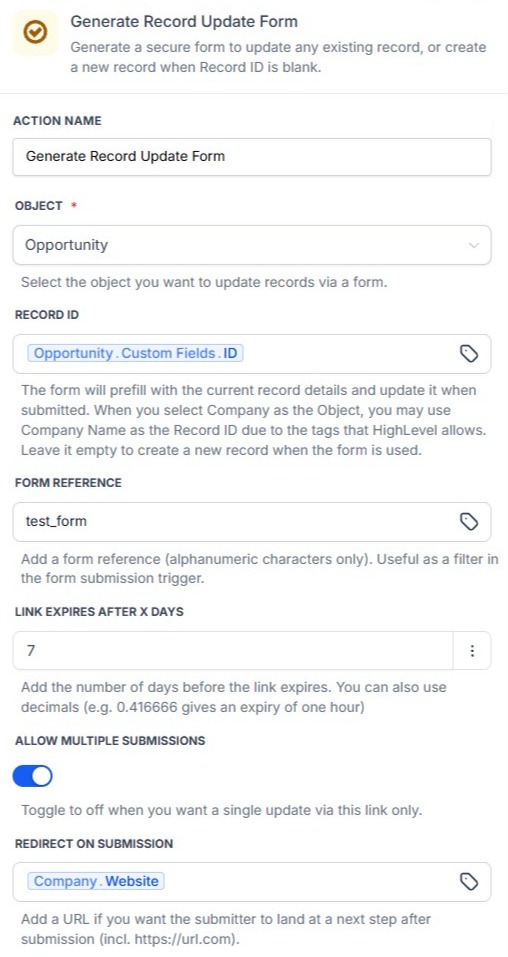
Object
Select the HighLevel object the form should update or create: Contact, Business, Opportunity, or any HighLevel Custom Object.
Record ID
For update mode, provide the ID of the CRM record using a workflow variable.
For creation mode, leave Record ID blank – see Creating New Records.
Form Instructions
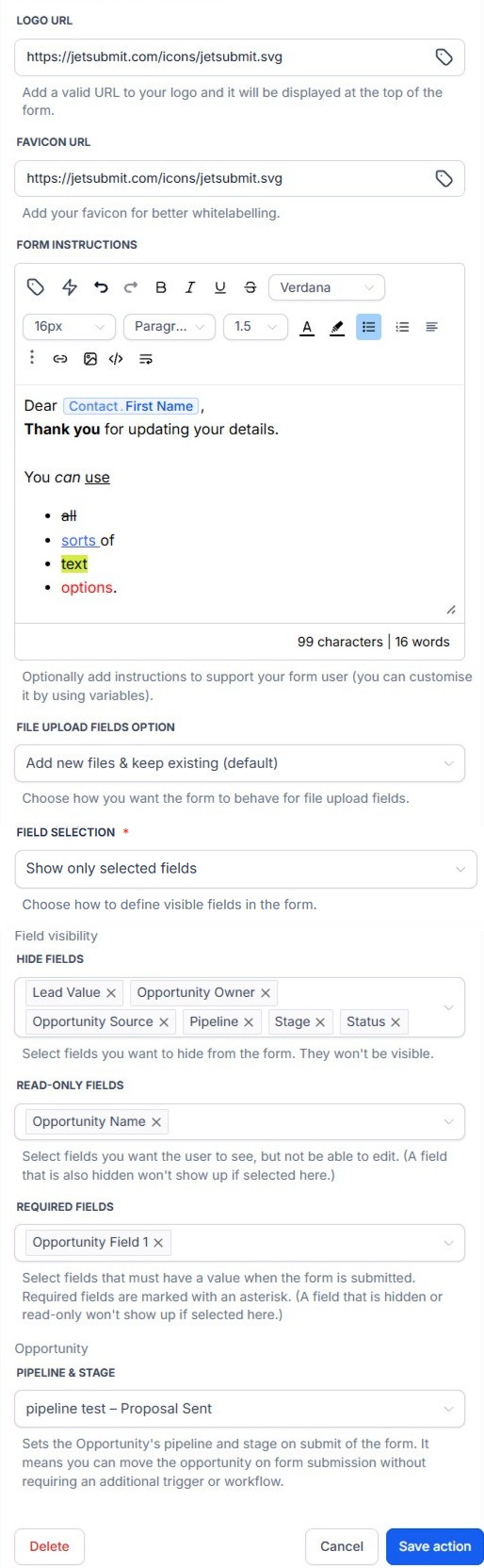
Form Instructions is a rich-text field displayed at the top of the public form. It supports HighLevel workflow variables, so instructions can be customised for each generated form.
Form Instructions support:
- formatted text
- links
- lists
- line breaks
Logo
When a logo is configured, it is displayed on the public form.
Field Selection
Field Selection decides how the field list underneath it works. There are two choices, and the list re-titles itself as soon as you change it.
- Hide selected fields – the default. The form starts as every field on the record, and the fields you pick are taken away.
- Show only selected fields – the form is only the fields you pick. Everything else on the record is left out.
Switching between the two keeps your work. If you were hiding First Name and you switch to Show only selected fields, every field except First Name is selected for you – the same form, described the other way round. Switching back does the reverse.
Existing workflow actions and every link they have already generated are on Hide selected fields and behave exactly as before.
Hidden Fields
Shown when Field Selection is Hide selected fields. Selected fields are not displayed to the person completing the form.
Select Fields
Shown when Field Selection is Show only selected fields. The form displays these fields and nothing else. Read-only Fields and Required Fields then only offer what is on this list – a field the form does not show cannot be read-only or required.
Leave it empty and the form falls back to the same fields a blank Hidden Fields would have shown, rather than generating a form with nothing on it.
Read-only Fields
Selected fields are visible but cannot be edited.
Required Fields
Selected fields must contain a value before the form can be submitted. An existing value satisfies the requirement. If a user clears a required value, submission is blocked. Required fields are intended to be visible and editable.
Allow Multiple Submissions
When enabled, the same form link can be submitted multiple times. When disabled, later submissions after the first successful save are rejected.
Send Verification Code
Reference send_verification_code. A checkbox, shown under Additional Identity Verification. It appears for Contact and Opportunity only – verification depends on a phone number or email address already stored on the target record, so it is not offered for Business or Custom Object forms.
When it is on, the recipient must enter a one-time code before the form loads. The code is sent by SMS to the phone on the record, or by email if there is no phone number, with an automatic fallback to the other channel if delivery cannot be confirmed. A browser that has verified stays trusted for 48 hours, and the code can be requested on one device and entered on another.
The action requires an existing Contact and the Conversations OAuth scopes to send the code.
Pipeline & Stage
When Object is Opportunity, one extra field appears on the action: Pipeline & Stage, a single dropdown listing every stage across every pipeline. Leave it blank and the form just shows the Opportunity's current pipeline and stage as usual. Set it and the recipient sees that stage pre-filled instead – the form's own Pipeline and Stage fields still show and can still be edited, unless separately hidden or made read-only above.
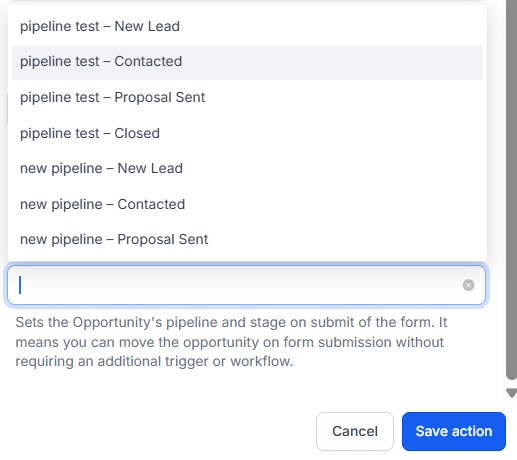
This is what lets a submitted form move an Opportunity to a new Pipeline Stage automatically, with no separate workflow trigger required.